How to use PhotoCraft online
Start with the studio sample and complete a small layered composition in the browser editor.
Written for this site’s PhotoCraft 0.9.0 browser build.
Before your first PhotoCraft edit
Use a current desktop browser and start with the small practice image below, rather than your only copy of an important file. Keep the original download unchanged. This guide describes a short practice workflow for the pinned browser build, not a guarantee that every Photoshop document or effect will behave identically. Menu labels may vary as PhotoCraft evolves.

Your practice image
An AI-generated studio still life. Download it, then open it in PhotoCraft to follow the steps below.
Download sample PNG ↓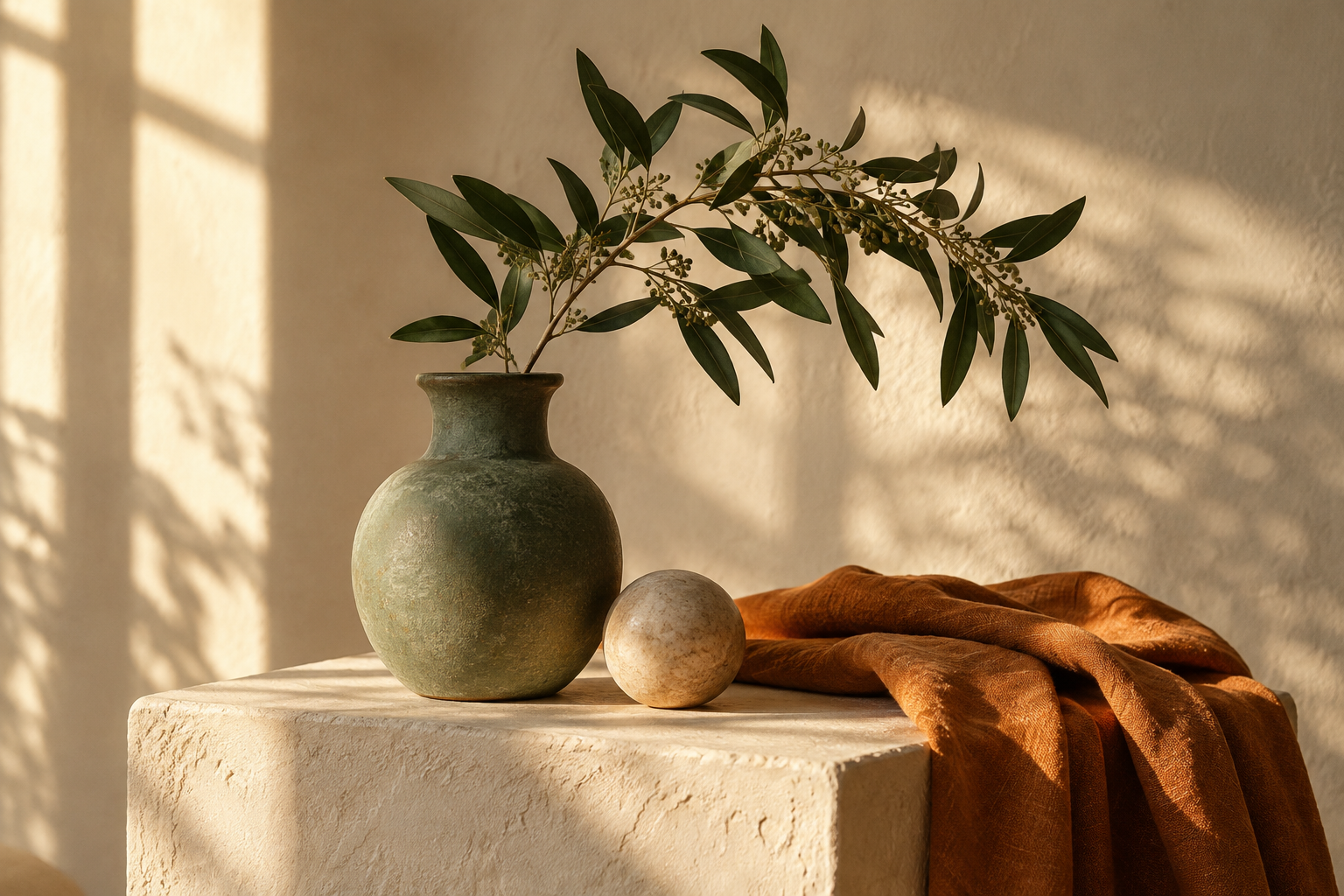
1. Open the studio sample
Download studio-sample.png. Open PhotoCraft, choose File → Open and select the downloaded image.
If the downloaded image is not in the file picker, check your browser’s Downloads folder and the file extension. The sample is a flat PNG, so it will not arrive with editable type or adjustment layers. You will add those yourself. Opening it is a useful first check that the editor is working on your device.
2. Inspect the workspace
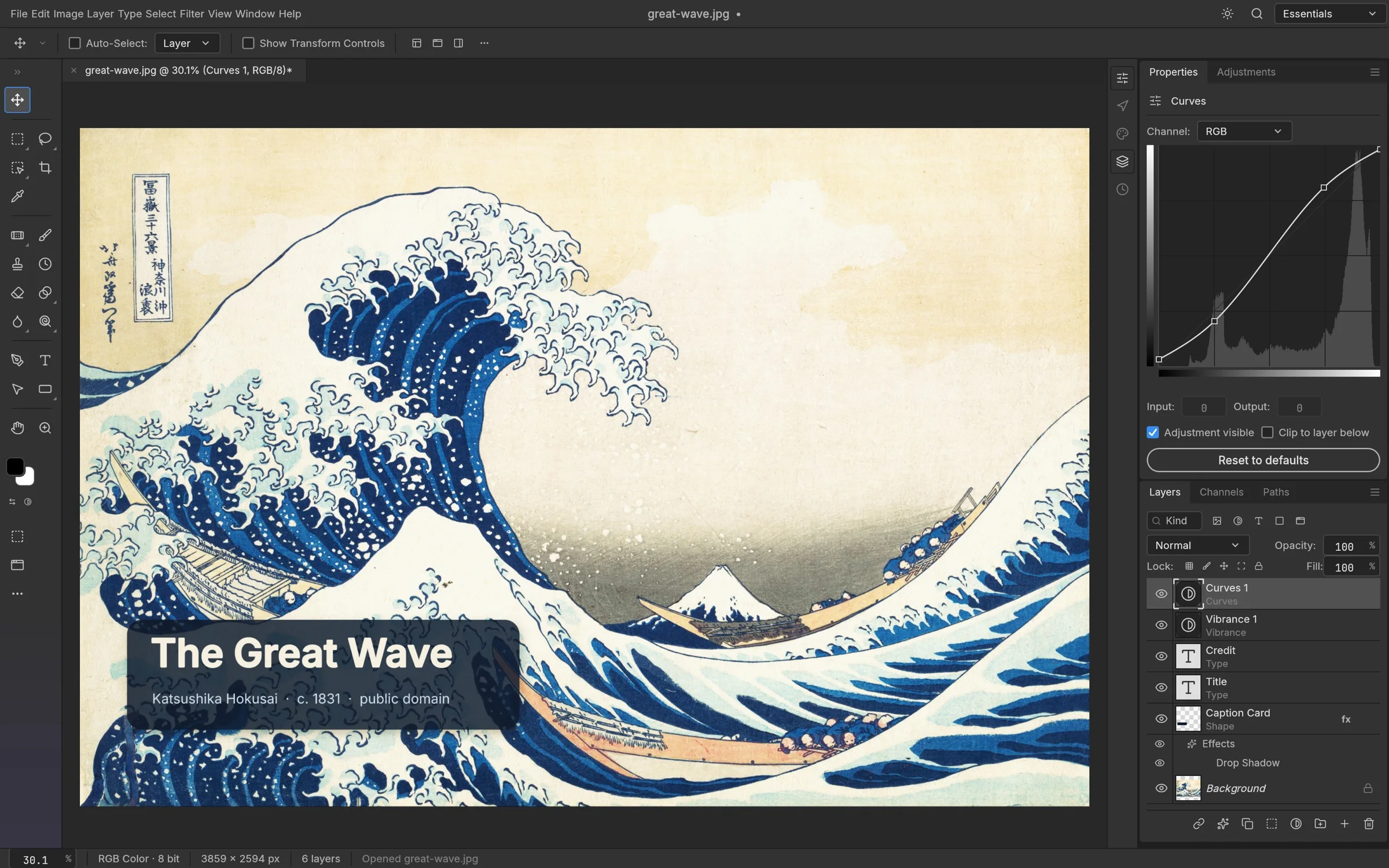
Find the canvas, toolbar and Layers panel. The sample starts as a flat image. Keep it as the base of your composition.
Click the image layer and look for its visibility control. Hide it briefly, then show it again to understand how the canvas relates to the Layers panel. You do not need to understand every tool at once. For this exercise, keep the background intact and make each new element separately so it is easy to identify.
3. Add a color adjustment
Choose Layer → New Adjustment Layer → Curves. Select the adjustment thumbnail rather than its mask, then move one point slightly and compare the image with the adjustment hidden and visible.
Make a small change rather than pushing the image to an extreme. The purpose is to see how a separate adjustment affects the picture. Toggle its visibility to compare the result, and give the layer a name you will recognize later. If the result looks wrong, remove the adjustment rather than repeatedly modifying the original image.
4. Add editable text
Choose the Type tool (T), click on the image and add “A study in light.” Use Inter Regular and keep the text on its own layer. Press Escape, then choose the Move tool (V) when you have finished typing.
Keep the caption short and place it where the letters remain legible against the photograph. Choose a font available in the editor; a font used in someone else’s PSD may be missing on your device. Check the wording, size and position at a comfortable zoom level, then select a different layer to inspect the overall composition.
5. Save an editable copy
Choose File → Save As to save a layered PSD copy. Keep the original sample separately.
Choose a new filename so that your practice document is easy to distinguish from the original PNG. An editable layered document serves a different purpose from a flattened image: keep it when you expect to change the text or adjustment later. Confirm that the download actually reached your device before closing or refreshing the editor.
6. Export and check
Export a PNG. Open the downloaded image to check its appearance, then reopen the saved PSD in PhotoCraft to inspect the layers.
Inspect the exported image outside the editor. Check the text, color, dimensions and any transparent areas you intended to keep. Reopen the layered file separately and confirm that the relevant layers are present. If something differs, retain both files and simplify the document to identify the cause before relying on the same workflow again.
If the browser editor will not start
Use the retry or compatibility option shown on the editor page. Compatibility mode restarts the workspace, so save any open document before switching. If problems continue, try another current desktop browser or choose a desktop package for your system. There is no document autosave or crash recovery on this website; a tab left open is not a saved copy.
Save regularly. Closing or reloading the browser is not a substitute for saving a document.