PhotoCraft guides
Practical notes for opening PSDs, making your first edit, and keeping your work.
Getting started
How to use PhotoCraft online
Start with the studio sample and complete a small layered composition in the browser editor.
PSD files
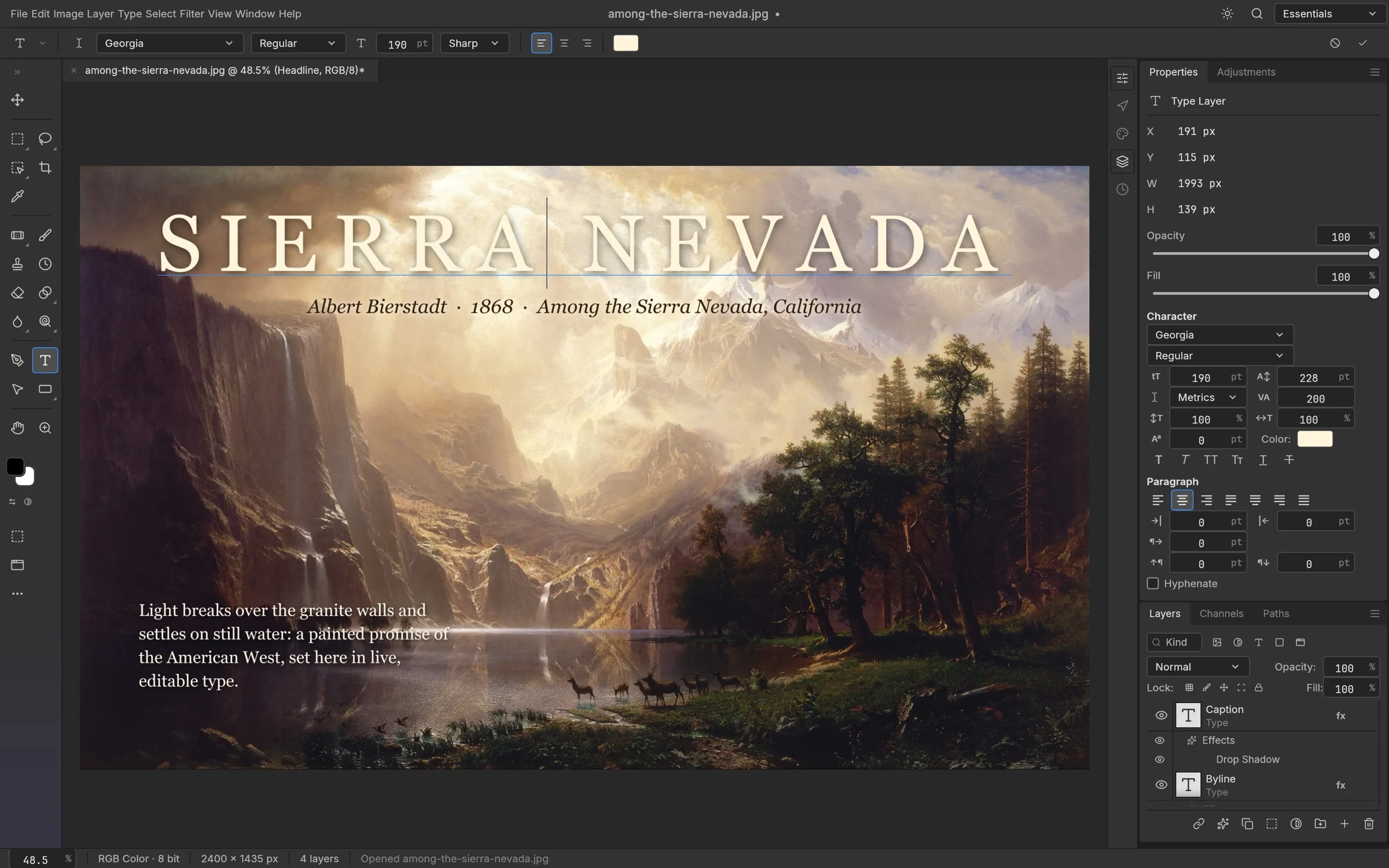
How to edit text in a PSD without Photoshop
Open the PSD in PhotoCraft, select the text layer with the Type tool, and retype it — unless the text was rasterized, in which case it is pixels, not text.
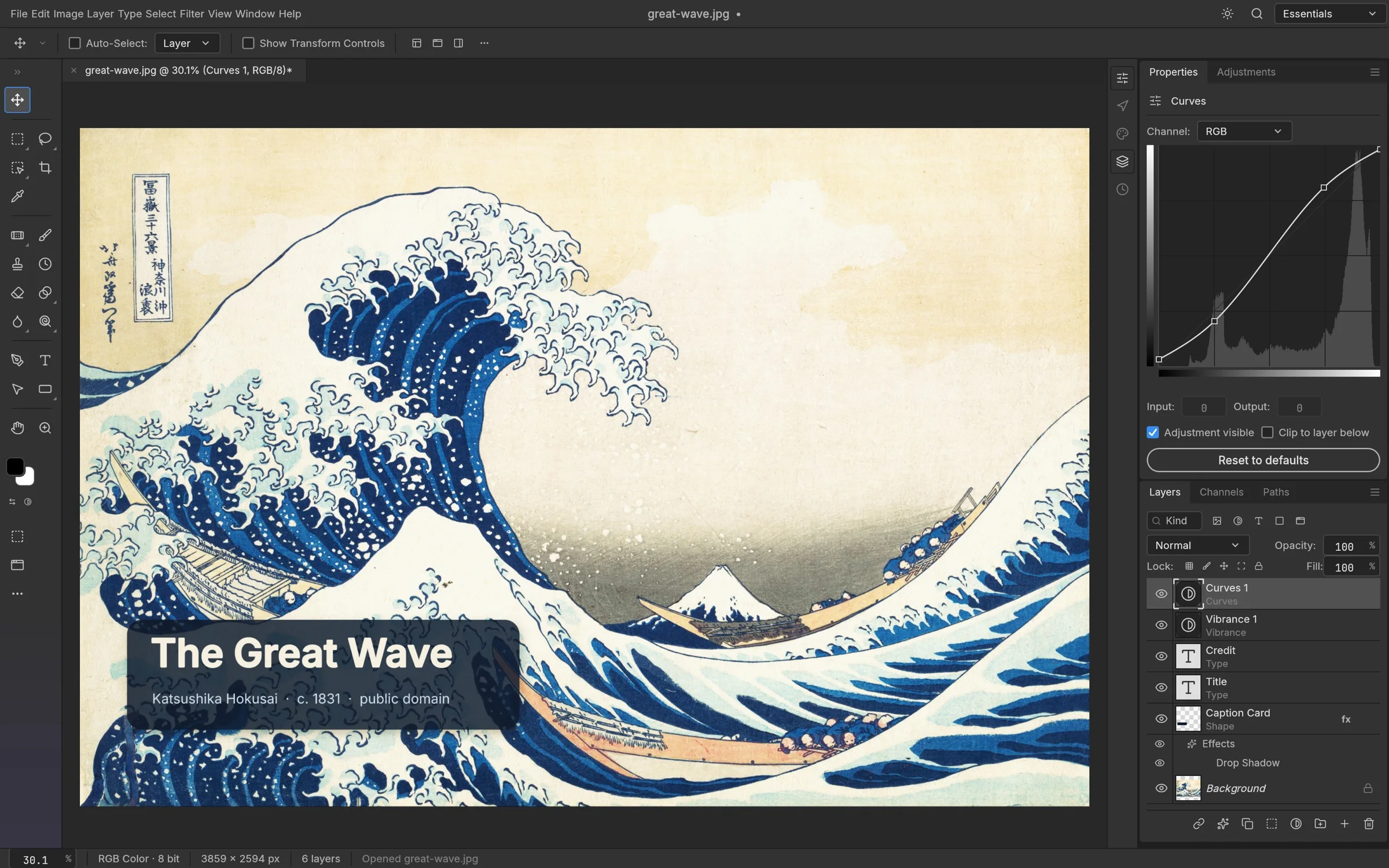
How to open a PSD file without Photoshop
You can open a PSD file in your browser with PhotoCraft — no installation and no account. Check the layers, text and appearance, then keep editing or save a copy.
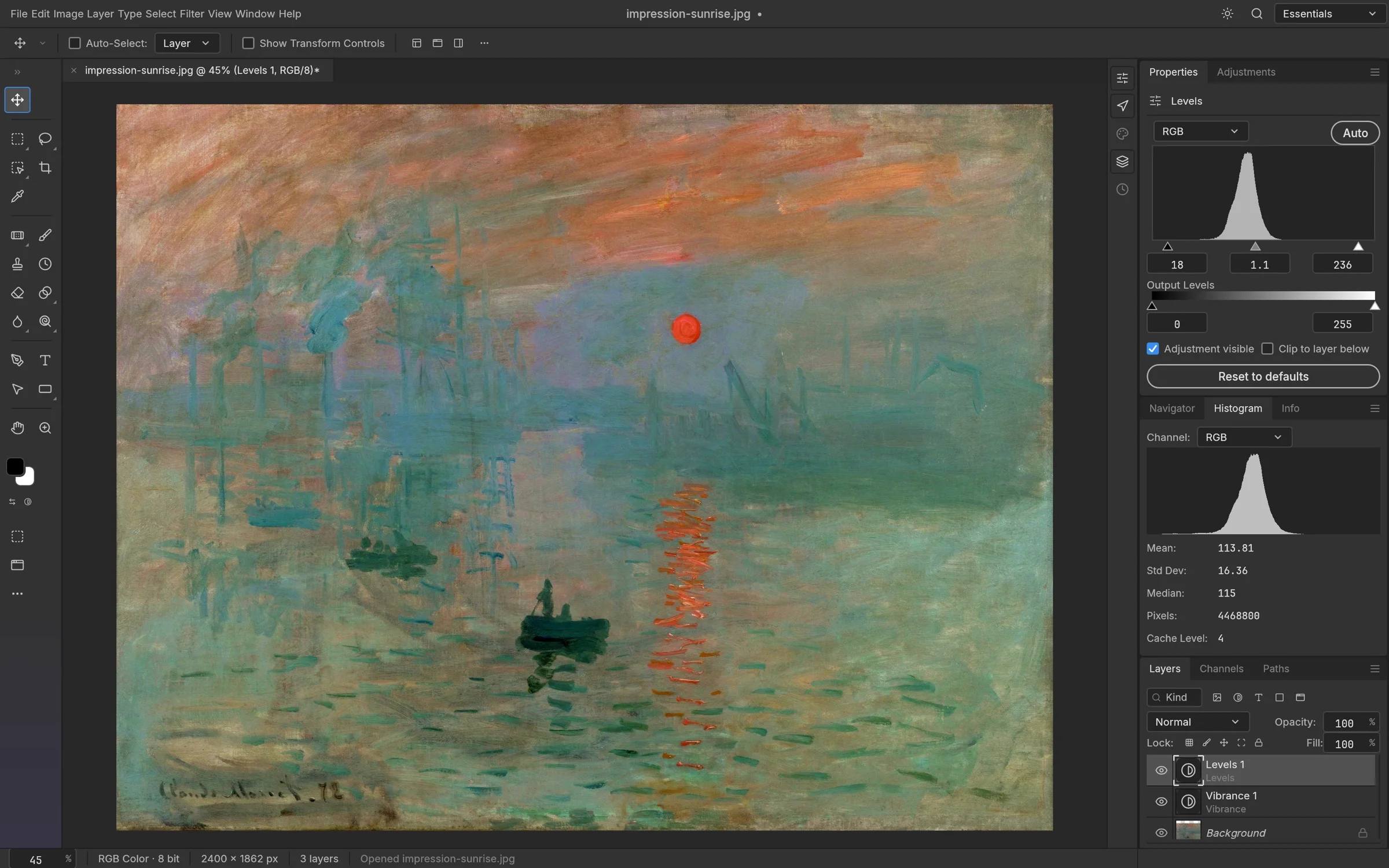
PhotoCraft file formats: what can you open, edit and export?
PSD, PNG, JPG and DDS all open in PhotoCraft 0.10.0 — but "opens" and "keeps everything editable" are different claims. Here is the per-format matrix with our actual test status.
How to save a PSD and export PNG or JPG
Save keeps an editable layered document; export produces a finished PNG or JPG. Both download straight to your device — here is the exact workflow and how to check the result.
Editing
How to add text to a photo in PhotoCraft
Use the Type tool to add a caption, title or watermark-style text to any photo, then export the result. No installation, no account — version reference: 0.10.0.
How to use brushes in PhotoCraft
PhotoCraft 0.10.0 has a brush panel with presets and image tips. Paint with size, opacity, flow and smoothing controls; ABR import support is limited — here is what we verified.
How to work with layers in PhotoCraft
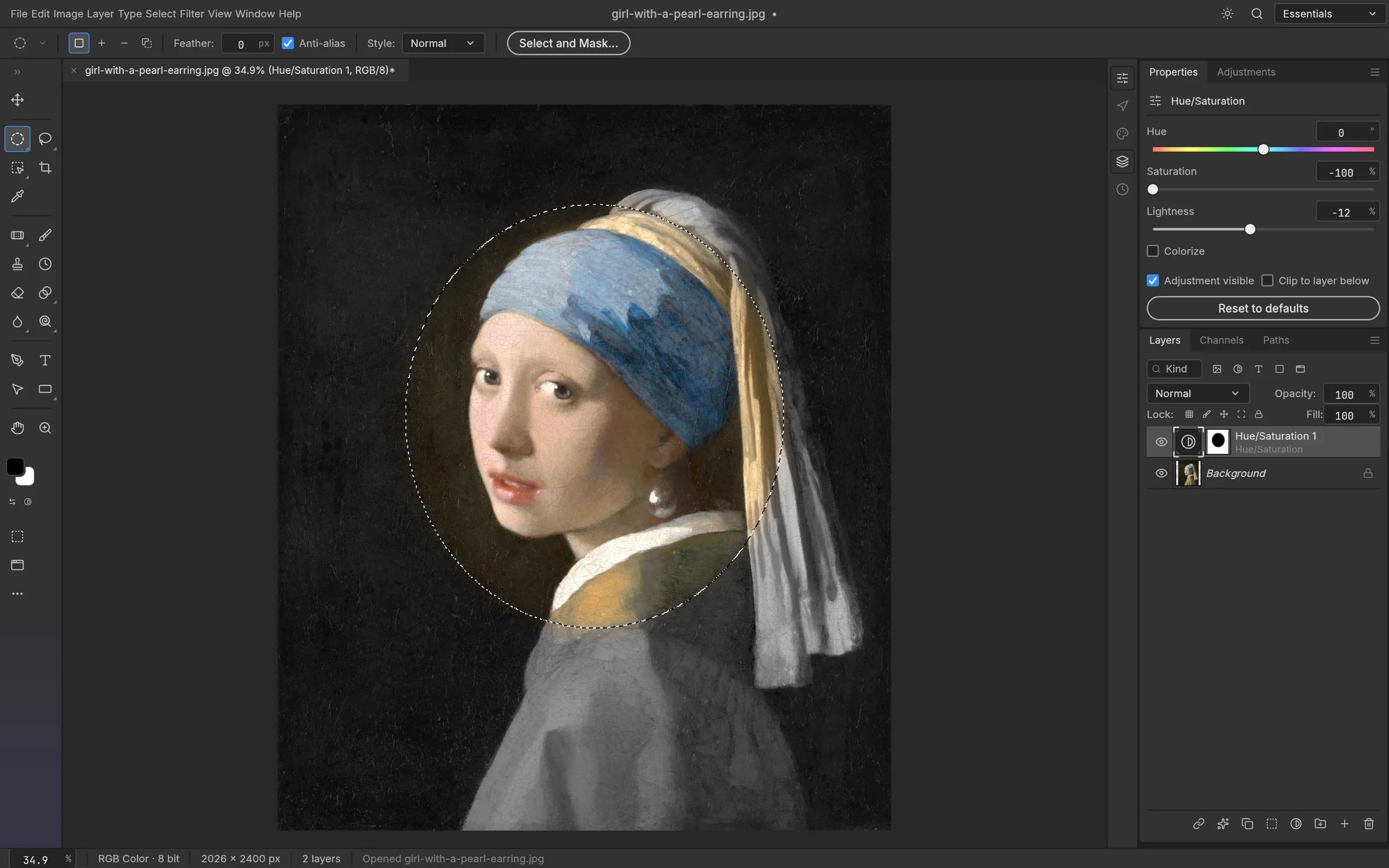
The Layers panel is where PhotoCraft edits live: toggle visibility, reorder, set opacity and handle locked background layers — only verified operations described.
How to save a PNG with a transparent background
Transparency survives export only as PNG, and only where the background is genuinely hidden or removed. Here is the workflow and why JPG always fills the background.
Troubleshooting
What to do if PhotoCraft will not load
Most start-up problems are a slow first load, an unsupported browser, or a graphics fallback. Work through these steps in order — they mirror what the editor page actually offers.
Why will my PSD file not open correctly?
A single PSD that fails while others open usually means an unsupported feature, a very large file, or missing fonts. Here is what to check — and what PhotoCraft cannot do.